
Practical Ways to Improve Home Wi‑Fi Signal and Network Stability
Home Wi‑Fi signal optimization matters when streaming, video calls, or online work feel slower than your internet plan. This guide helps you compare simple router placement changes, dead‑zone fixes, mesh options, speed testing, and Wi‑Fi channel tuning to improve everyday home network stability.
This story is part of Esgamesol's practical reading library across everyday topics.
Understanding Home Wi-Fi Performance
Home Wi-Fi signal optimization starts with seeing your wireless network as a shared radio environment. Performance depends on signal strength, how well that signal reaches different rooms, and overall home network stability as you move around or add devices. Building materials such as brick, concrete, metal framing, and large appliances can weaken signals, while open areas and central locations help coverage. Interference from neighboring networks, cordless phones, baby monitors, and other electronics can make the connection less reliable, even when your internet plan looks fast on paper.
Stability matters because everyday activities depend more on consistent connectivity than on occasional peak speed. Video calls, streaming, online gaming, smart home devices, and cloud backups all work best when the signal stays steady and latency is low. A network that drops or fluctuates can cause frozen screens, buffering, or timeouts, even when speed test results seem fine. By watching how devices behave in different rooms, noting where connections stall, and linking these issues to your home layout and sources of interference, you can make smarter decisions about router placement, equipment upgrades, and other changes that keep home Wi-Fi performance reliable.
Smart Router Placement for Better Coverage
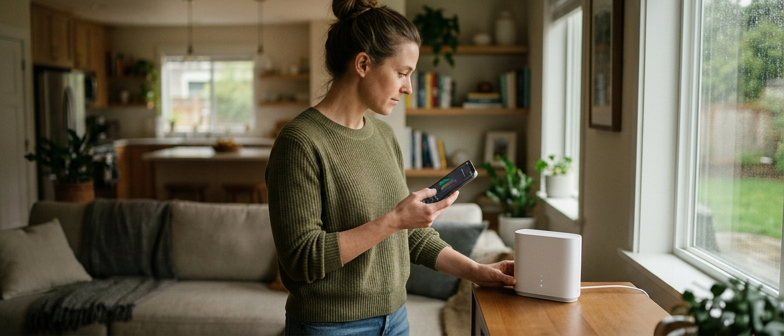
Where you place your router has a major impact on home Wi-Fi signal optimization and overall network stability. A central, open location helps the signal reach more rooms, instead of hiding the router in a corner or behind furniture. Elevating it on a shelf or table rather than on the floor reduces obstacles like thick walls or large appliances. Avoid putting the router inside cabinets or right next to metal objects, fish tanks, or microwave ovens, which can cause interference and uneven coverage. If the router has antennas, angle them so the signal spreads horizontally across rooms and vertically between floors.
Smart placement also means matching the router’s position to how you actually use the internet. If most streaming and video calls happen in one room, move the router a bit closer while still keeping it reasonably central. In multi-story homes, placing it near the middle of the house or at the top of the lower floor helps the signal reach upstairs more reliably. Keep the router in a well-ventilated spot to prevent overheating, which can harm home network stability. Combined with basic settings like choosing a suitable Wi-Fi band and channel, these placement tips give you a solid starting point for stronger, more consistent coverage before you invest in extenders or mesh systems.
| Home layout scenario | Typical router position | Coverage result | Suggested adjustment |
|---|---|---|---|
| Small apartment, open rooms | Router in corner near TV | Uneven signal, weaker in far room | Move to central shelf away from electronics |
| Larger single-story home | Router on floor by exterior wall | Signal fades toward opposite side | Elevate router near middle of home |
| Two-story home, main use upstairs | Router in downstairs corner office | Upstairs rooms get inconsistent signal | Place router near stairwell or upper level hallway |
| Multi-room home with thick walls | Router hidden in cabinet in hallway | Stable near hallway, dead zones in side rooms | Take router out of cabinet, keep in open area |
| Home with many appliances nearby | Router next to kitchen microwave | Noticeable drops during appliance use | Relocate router away from kitchen and large metal objects |
| Mixed work and entertainment spaces | Router close to one media room only | Strong signal in one room, moderate elsewhere | Choose a central spot balancing work and streaming areas |
Avoiding Common Placement Mistakes
One of the easiest ways to improve home Wi‑Fi signal optimization is simply avoiding poor router placement. Hiding the router in a cabinet, behind a TV, or under a desk can block wireless signals and reduce home network stability, even if your internet plan is fast. Instead, use basic router placement tips: keep the device in an open area, raised off the floor, and away from thick walls or large metal objects so the signal can travel more evenly through your home.
Fixing Wireless Dead Zones and Weak Spots
Wireless dead zones and weak spots show up as rooms where streaming stalls, video calls freeze, or devices drop off the network. For better home Wi-Fi signal optimization and overall network stability, start by finding where the signal fades. Walk around with a phone or laptop and watch the Wi-Fi indicator, or use a Wi-Fi analyzer app to see changes in strength. Note where thick walls, metal structures, appliances, or closed doors sit, because these materials can block or reflect radio waves. Once you know where coverage dips, you can decide whether small adjustments or added equipment are the best way to restore a stable connection.
In many homes, the quickest fix is to change where equipment sits. Place the main router in a central, elevated spot, away from cabinets, aquariums, and clusters of electronics that interfere with wireless signals. Rotate the router so its antennas aim toward problem areas, move cordless phones or baby monitors away from it, and keep key doors slightly open along the signal path. Moving devices such as smart TVs or game consoles a bit closer, or wiring them with Ethernet when possible, can relieve wireless congestion and help keep the home network steady.
If repositioning does not clear dead zones, additional hardware can extend coverage. A range extender or extra access point can push a stronger signal into distant rooms, though some models create a separate network name that devices switch between. For smoother roaming and more consistent home network stability, mesh Wi-Fi systems use several coordinated nodes so phones and laptops can move around without manual reconnecting. Place each extra unit where it still receives a solid signal from the previous one, rather than in the middle of the dead zone, so the extended network remains reliable across your living space.
Choosing Between Extenders and Mesh Systems
Traditional Wi‑Fi extenders offer a quick way to fix wireless dead zones by receiving the signal from your main router and rebroadcasting it. They are inexpensive and easy to add, but often create a separate network name, can slow speeds on the extended link, and work best when placed where the original signal is still fairly strong.
Mesh network systems improve Home Wi‑Fi Signal Optimization by using multiple nodes that form one unified network. This helps coverage and stability across the home and reduces new dead spots, especially in larger or complex layouts. Mesh usually costs more and may replace or supplement your main router, so choose it when you want a more consistent whole‑home experience rather than a quick, single‑area fix.
Testing Speed and Tuning Wi-Fi Channels
To optimize your home Wi-Fi signal, start by checking your actual internet speed so you can separate limits from in-home wireless issues. Use a reputable speed test while connected to your home network, and run it at different times of day and in several rooms. Compare the results with the speed listed on your service plan. If speeds match your plan near the router but drop sharply in distant rooms, your wireless setup is likely the main bottleneck for home network stability.
Once you understand this speed baseline, adjust Wi-Fi channels to reduce interference and improve reliability. Most routers let you choose channels in their settings; on 2.4 GHz, non-overlapping channels are usually more stable, and on 5 GHz you can choose from more options to avoid crowded frequencies. Use a Wi-Fi analyzer to see which channels nearby networks use, pick a less congested option, then test again. After each change, repeat your speed checks and note whether pages load more consistently, video calls disconnect less, and devices keep steady connections so your home network runs more smoothly.
Q&A
-
How can I optimize home Wi-Fi without new hardware?
Place the router centrally, high, and in the open, away from thick walls, metal, and appliances. Update firmware, set a strong password, and disconnect devices you don’t use. -
What are simple router placement tips for a two-story home?
Put the router near the center, about midway between floors, not in a corner or closed cabinet. Keep it away from TVs, fish tanks, and microwaves, and angle antennas to reach both levels. -
How do I detect and fix wireless dead zones?
Walk around with a phone or laptop, checking signal bars or a Wi-Fi analyzer app. For weak spots, move the router, tweak antenna angles, or place an extender or mesh node closer. -
When is a mesh network better than basic extenders?
Use mesh in larger or irregular homes where you need seamless coverage and one network name. Choose simple extenders for small, isolated weak areas in more straightforward layouts. -
How can speed tests and Wi-Fi channel selection improve home network stability?
Run speed tests near the router and in problem rooms to spot slow zones. If nearby networks crowd one channel, log in to the router and switch to a quieter channel to reduce interference.